Help
From install to your first conversation in a few minutes. Below is every step with a screenshot, what each setting does and what to do when something doesn't work.
1. What you need
- Two Android phones with BackTalk, one for the driver and one for the passenger.
- Wi-Fi turned on on both phones. No internet and no mobile data needed: the phones connect directly to each other.
- A headset with a microphone for each of you: the intercom in your helmet, any Bluetooth headset, or wired earphones plugged into the phone. Pair a Bluetooth headset with the phone in Android settings as usual, before you connect.
Without a headset the sound plays on the phone itself. Handy for a test at the table; on the ride you need a headset.
2. First start: choose your role
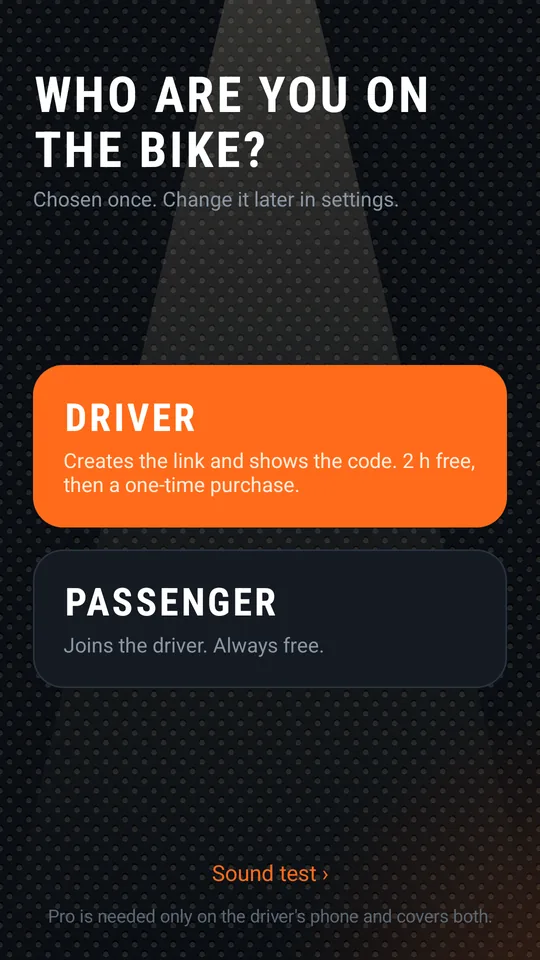
On the first screen choose who you are on the bike. It's chosen once; you can change it later in settings.
- Driver creates the link and shows the code. 2 hours of riding are free, then a one-time purchase.
- Passenger joins the driver. Always free for the passenger.
The Sound test link at the bottom lets you hear yourself in the headset before the first ride (step 5).
3. Pairing the first time
The phones pair once, with a six-digit code. After that the code is remembered.
Driver
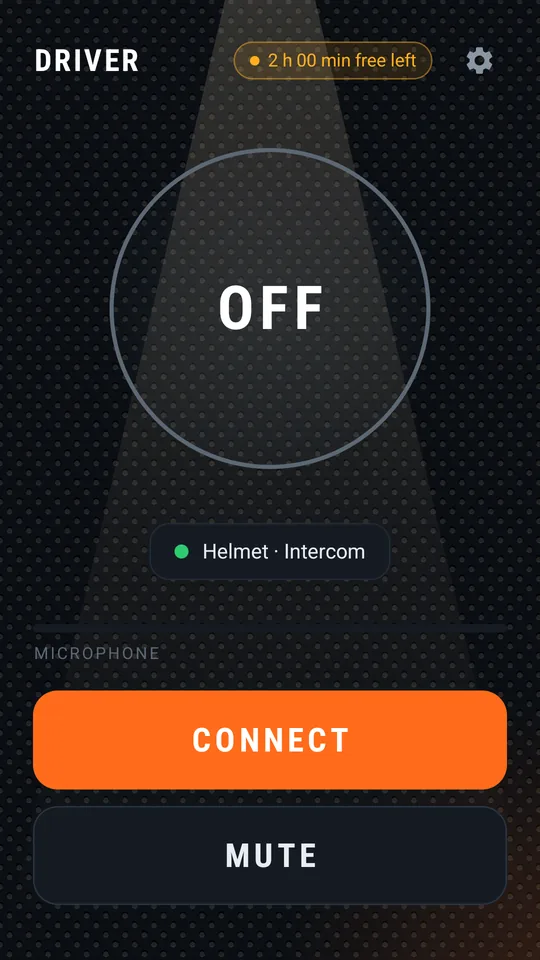
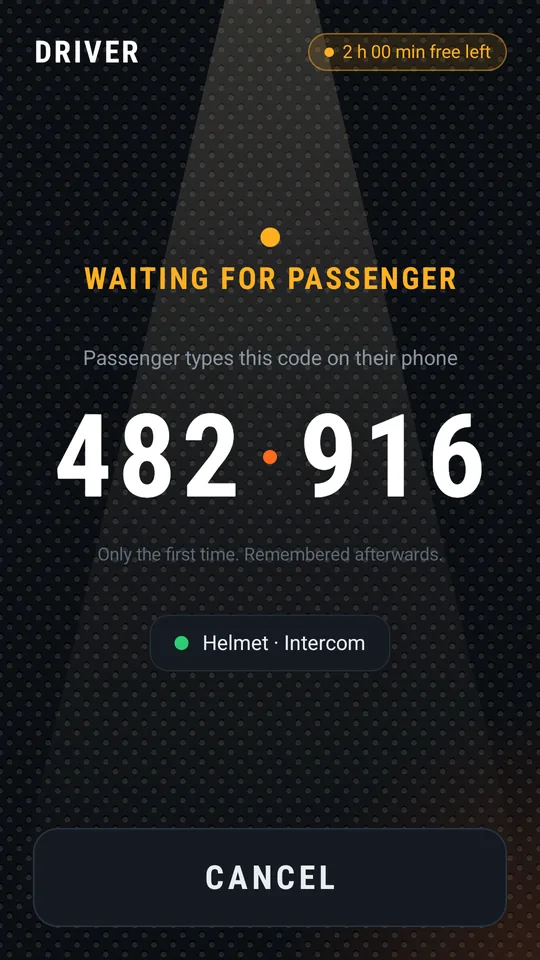
Tap CONNECT. The first time, Android asks for permissions:
- Microphone: so your voice is sent to the other phone.
- Nearby devices (on Android 12: location): Android requires it for a direct Wi-Fi link between phones. BackTalk doesn't use your location.
- Bluetooth: so the sound goes to a Bluetooth headset.
- Notifications: so the intercom keeps working with the screen off.
Then WAITING FOR PASSENGER and the code appear. The passenger types it on their phone.
Passenger
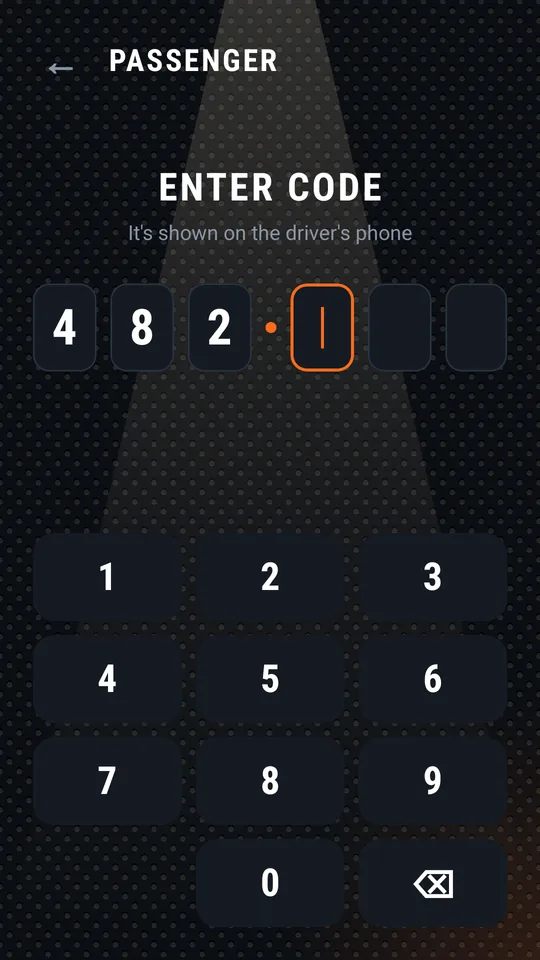
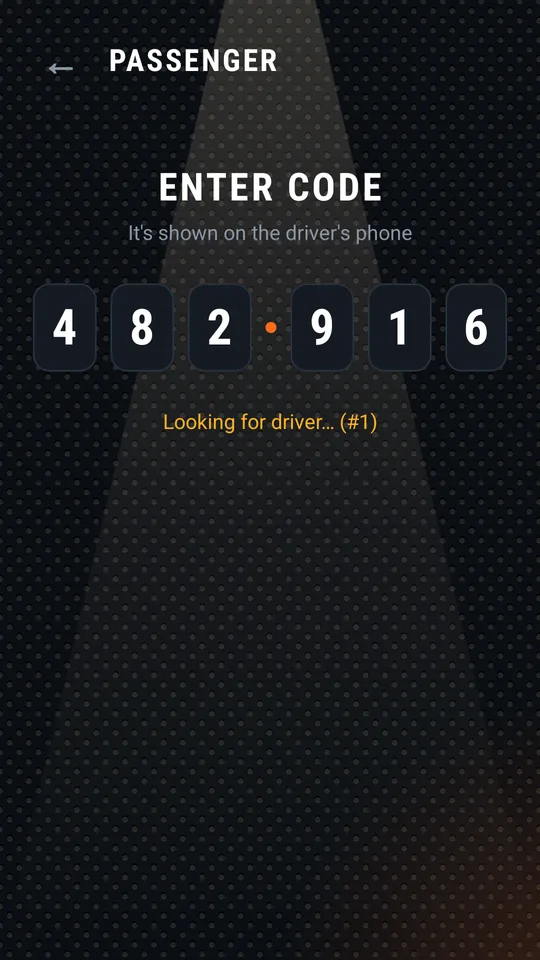
Tap CONNECT, allow the same permissions and type the code from the driver's phone. Connecting starts by itself on the sixth digit, with “Looking for driver…”.
When the phones find each other, both switch to CONNECTED.
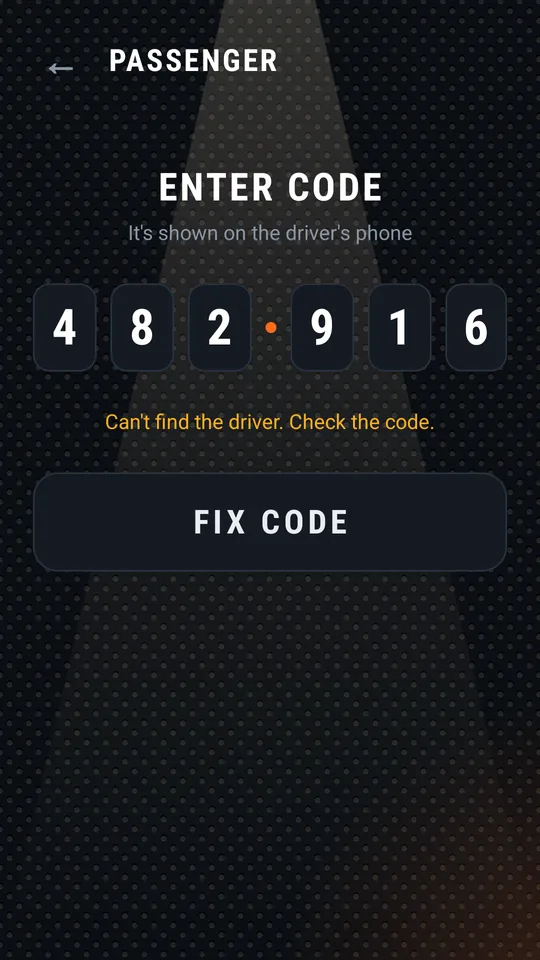
If the driver isn't found within 30 seconds, you'll see “Can't find the driver. Check the code.” Compare the code with the driver's screen, tap FIX CODE and type it again. The driver should stay on the WAITING FOR PASSENGER screen meanwhile.
Every ride after that: both just tap CONNECT. No code to type again.
4. On the ride
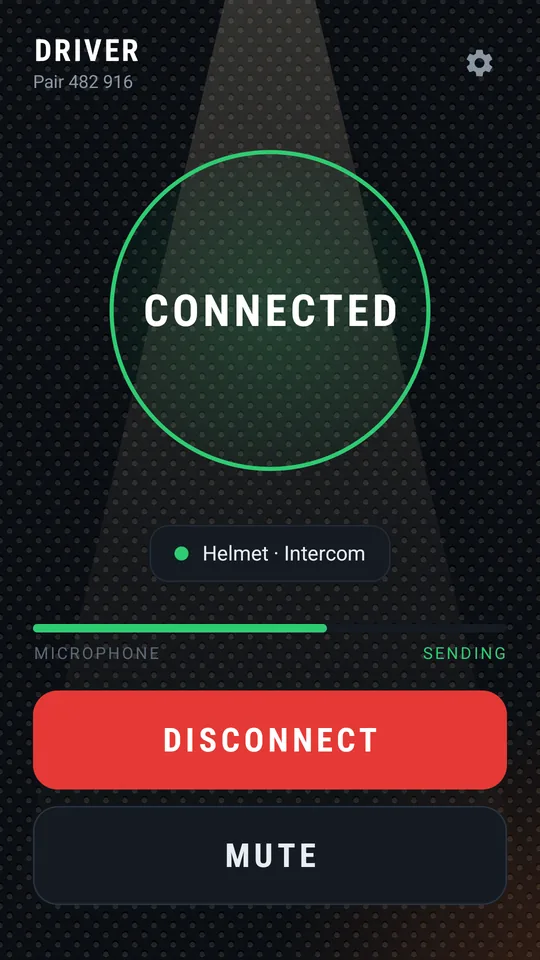
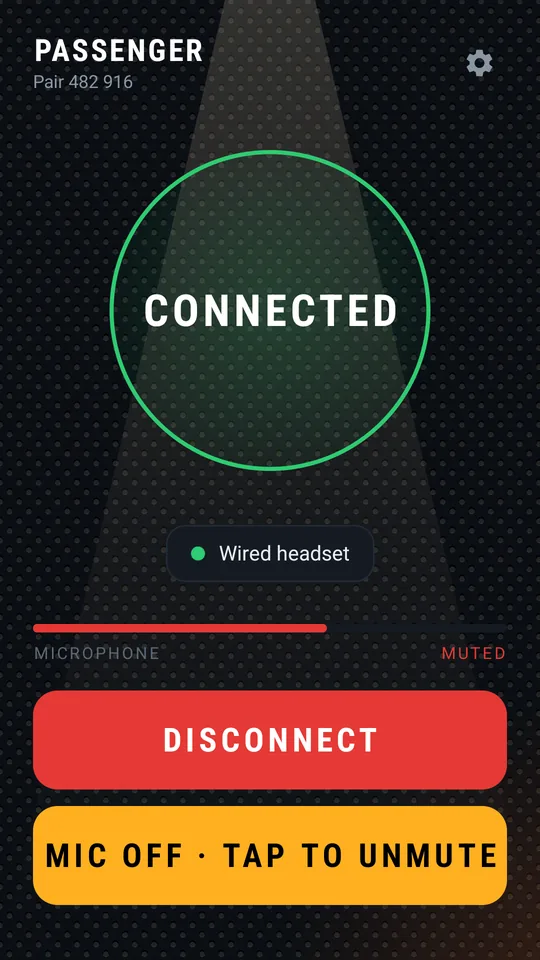
- CONNECTED in the green ring means you're talking.
- Below the ring it says where the sound goes: Helmet with the name of your Bluetooth headset, Wired headset or Sound on phone.
- The MICROPHONE bar shows how well the mic hears you, and SENDING that your voice is being sent right now.
- MUTE mutes your mic while you still hear the other side. Tap again to unmute.
- DISCONNECT ends the link.
Put the phone in your pocket; the screen can be off. The phone's notification has Mute and Disconnect buttons.
If the phones lose each other for a moment, the app reconnects by itself (“Link dropped, reconnecting…”).
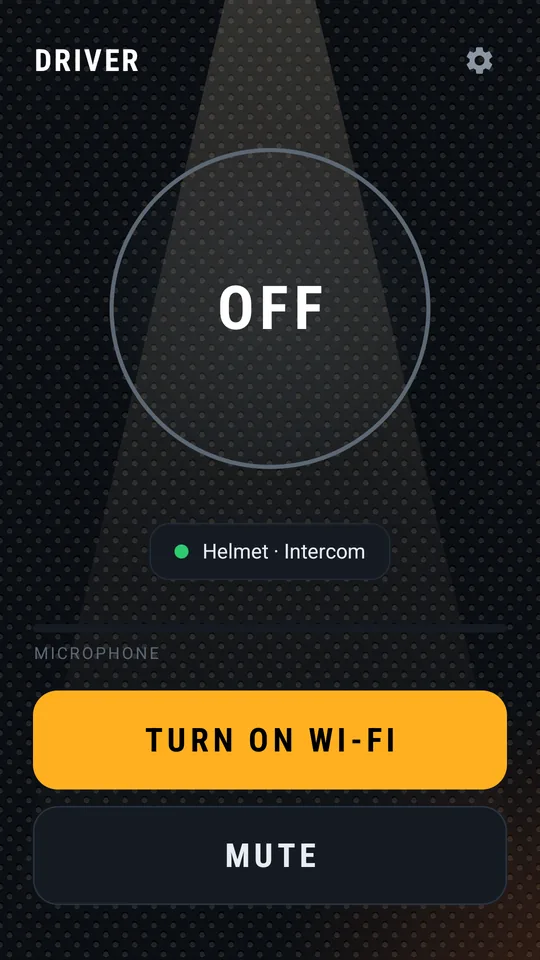
If Wi-Fi is off, TURN ON WI-FI replaces CONNECT. It doesn't need to be connected to any network; it only has to be on.
5. Sound test
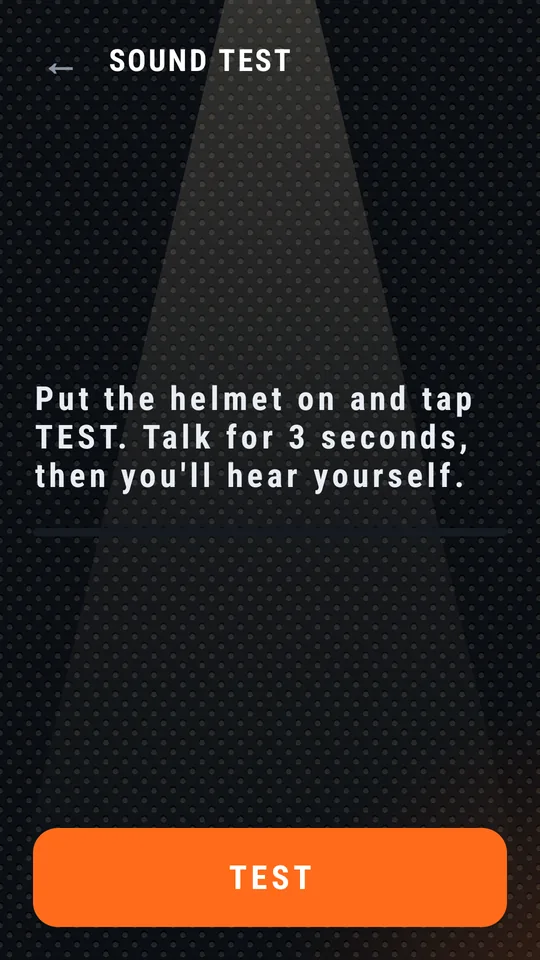
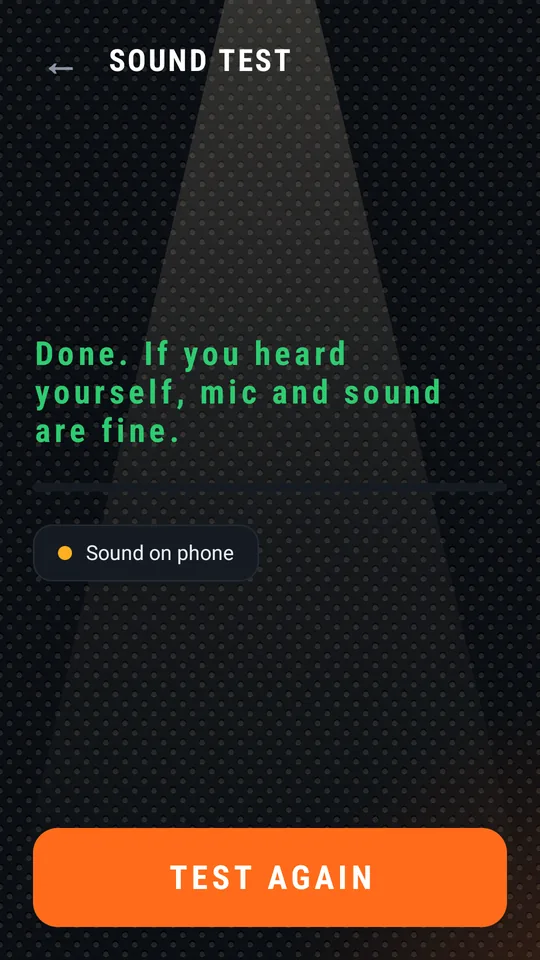
The sound test works on one phone, without the other. Open it from the role screen or from settings.
Put on the helmet or headset, tap TEST and talk for 3 seconds. The app then plays it back. If you heard yourself, mic and sound are fine. The recording isn't saved or sent anywhere.
If the mic hears almost nothing, the app tells you. Check the mic on your helmet or headset.
6. Settings
Open them with the gear icon at the top right of the main screen.
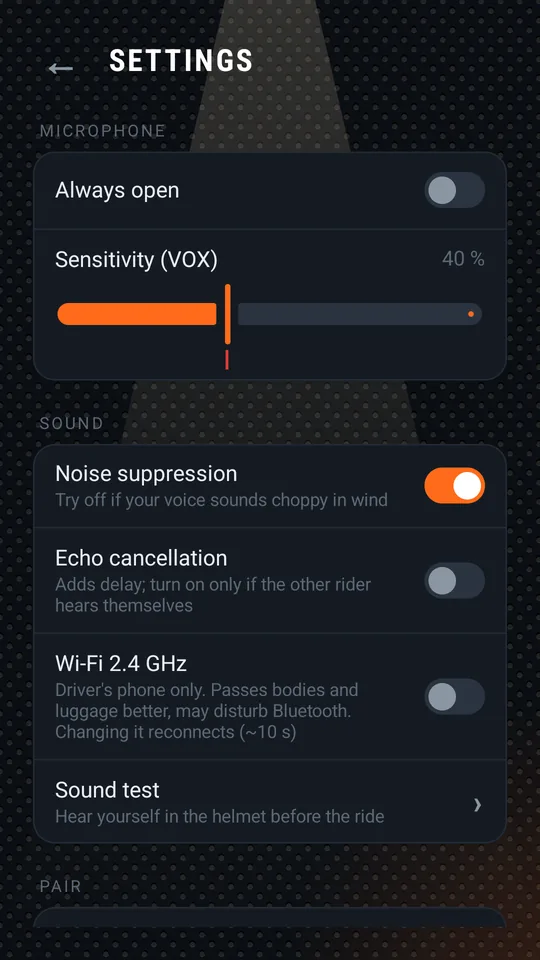
Microphone
- Always open (on by default): the mic sends all the time, like a phone call.
- Sensitivity (VOX): when “Always open” is off, the mic sends only when you speak louder than the threshold. Move the slider: a lower number sends quieter speech too, a higher one only when you speak louder. While connected, the bar below shows your voice level and the line marks the threshold.
Sound
- Noise suppression (on): reduces background noise on the mic. If your voice sounds choppy in wind, try it off.
- Echo cancellation (off): turn it on only if the other rider hears themselves. It adds a little delay.
- Wi-Fi 2.4 GHz (off): applies on the driver's phone only. Passes through bodies and luggage better, but may disturb Bluetooth. Changing it reconnects the link (about 10 seconds).
- Sound test: see step 5.
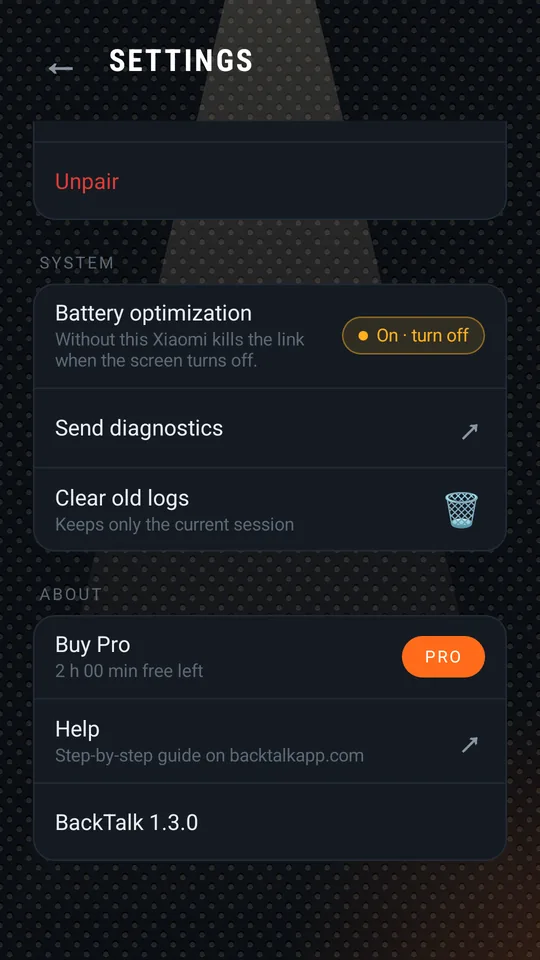
Pair
- Pair code: the code your two phones are paired with.
- Role · change: swap driver and passenger. The code stays the same; the other phone has to swap too.
- Unpair: deletes the code and the role on this phone, and the app starts again from choosing a role. The other phone will need a new code.
Role and pair can be changed while not connected. While connected it says “Disconnect first”.
System
- Battery optimization: tap it and turn it off for BackTalk. Without this some phones, Xiaomi in particular, kill the link when the screen turns off.
- Send diagnostics: prepares an email to us with technical logs, so we can find the problem. You can read and edit it, and nothing is sent until you send it.
- Clear old logs: keeps only the current session.
About
- Help: opens this guide.
- Buy Pro (only until Pro is bought, with the remaining free time) and the version number.
7. Free time and Pro
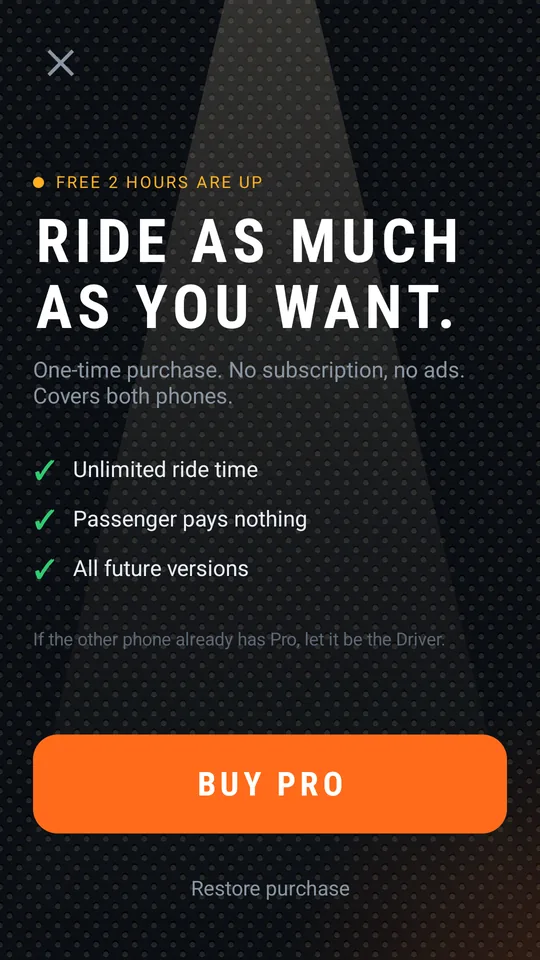
- The driver gets 2 hours of riding free. The time left is shown at the top right of the main screen.
- After that, Pro is a one-time purchase: no subscription, no ads. It's bought on the driver's phone only and covers both.
- The passenger never pays anything.
- Restore purchase: if you already bought Pro on the same Google account (new phone, reinstall).
- If the other phone already has Pro, let it be the driver.
8. When something doesn't work
- The passenger can't find the driver
- Check that the code is the same on both phones and that the driver is on the WAITING FOR PASSENGER screen. Wi-Fi must be on on both phones. Keep the phones close for the first pairing.
- The link drops when the screen turns off
- Settings → Battery optimization → turn it off for BackTalk. This is the most common cause, especially on Xiaomi phones.
- I hear nothing in my headset
- Connect the headset to the phone before you tap CONNECT. Below the ring it should say “Helmet” or “Wired headset”; if it says “Sound on phone”, the phone doesn't see your headset. Do a sound test.
- The other rider hears themselves
- Turn on Echo cancellation on the other rider's phone.
- My voice is choppy in wind
- Try turning Noise suppression off. If you use VOX, move the sensitivity threshold lower.
- Sound cuts out when the passenger is behind me
- On the driver's phone try Wi-Fi 2.4 GHz; it passes through bodies and luggage better.
- Nothing here helps
- Settings → Send diagnostics, and write in the email what happened. Or email us at [email protected].